
Adding an MCP plugin gives ChatGPT access to tools supplied by an external service. The difficult part of a first setup is often finding the right entry point, entering an actual MCP endpoint and installing what you just created. This guide follows a practical sequence for a ChatGPT Pro user on the web: connect, install, select, call and inspect.
The illustrations are publicly available OpenAI interface images. Some retain older menu names; the instructions follow current documentation. No private account screens, email addresses or conversation history were used, and this is not presented as a hands-on test inside a personal Pro account.
1. Understand the server, the plugin and the skill
An MCP server exposes callable tools. ChatGPT interprets a request, selects an available tool and uses the returned information. A plugin is the installed product entry point; it can package MCP tools, reusable skills or both. A skill provides working instructions, while a tool provides an external capability. Neither automatically supplies the other. Read the plugin overview.
Decide whether you want an existing directory plugin or a personal connection to a server. Installing a listed plugin usually involves its detail page and any required authorization. A custom connection requires the service’s MCP endpoint. An ordinary website address is not enough.
2. Pro availability and the meaning of “free”
The developer-mode guide lists Pro, Plus, Business, Enterprise and Education accounts on the web. It does not list Free for this capability. Workspace policy may also control availability. Check eligibility.
| Cost layer | What to check |
|---|---|
| ChatGPT account | This guide assumes Pro, which is a paid subscription. |
| Connection capability | The connection guide does not specify a universal separate MCP connection price; that is not a promise that every plugin is free. |
| External service | Check its plan, usage allowances and fees. |
| Self-hosted server | Hosting, databases and downstream services can have their own costs. |
| OpenAI API | A separate integration path; a Pro subscription is not an API balance. |
The public dice example is a useful first connection because it does not require authentication or your own server deployment. You do not need to create an API project just to follow that example. This says nothing about the pricing or authorization requirements of production services.
3. Find the current entry point
For a listed plugin, open ChatGPT Plugins, inspect its details and install it. For a custom server, follow Settings → Security and login → Developer mode, then return to the plugin directory and use the plus button to create a personal plugin. Follow your account’s displayed labels and workspace policy. Current connection instructions.
Older instructions and screenshots use Apps, Connectors or New Connector. The public screenshot below helps explain the fields, but it does not establish that your current account has an identical layout.
4. Fill in a first connection
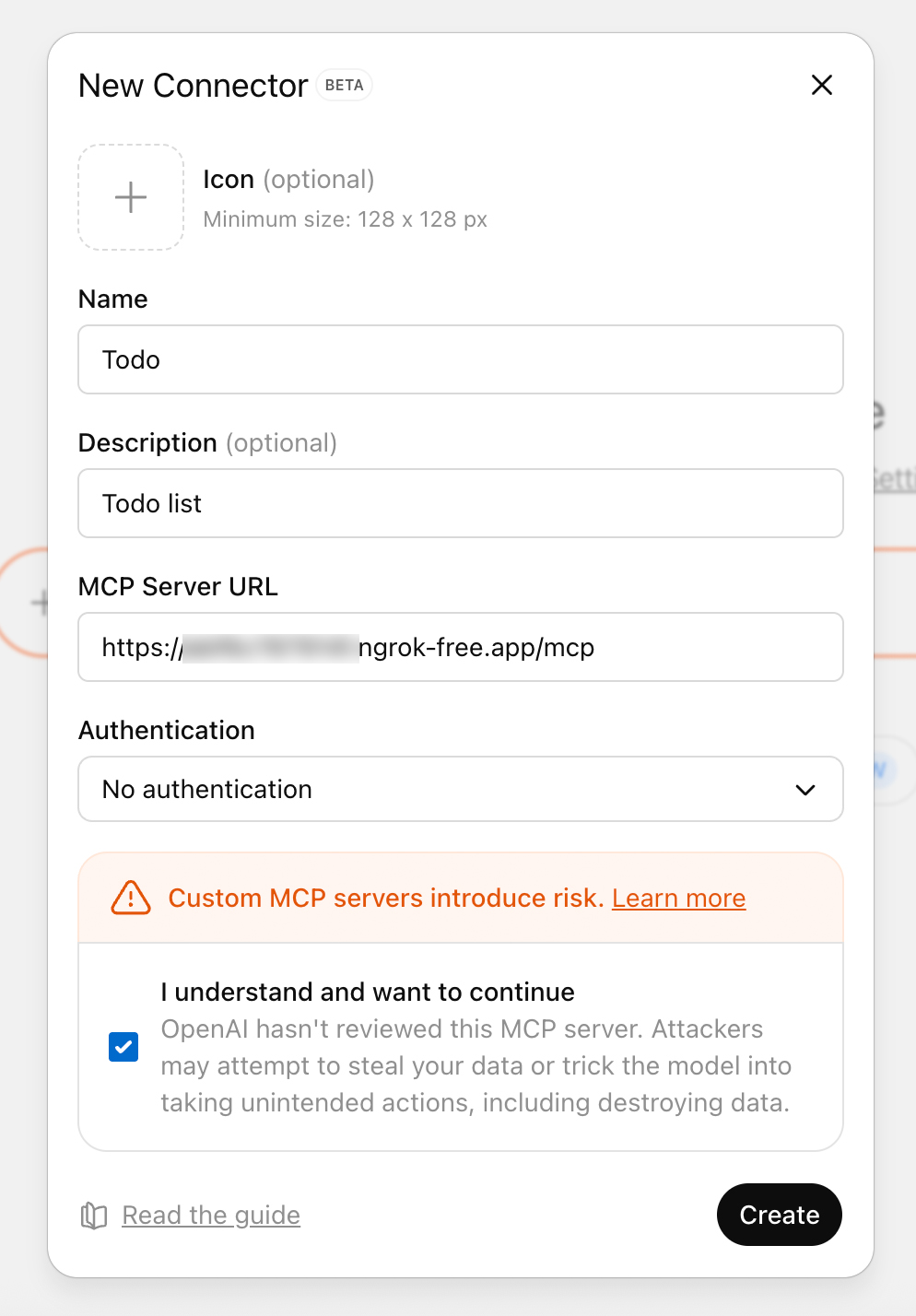
| Field | Value |
|---|---|
| Name | Dice Demo |
| Description | Roll a die using a read-only demo tool. |
| MCP Server URL | https://tinymcp.dev/api/moldy-aloof-zettabyte/mcp |
| Authentication | No Authentication, for this public example only. |
The official quickstart supplies this endpoint and describes a read-only roll_dice tool. Preserve the full path. If the demo is temporarily unavailable, check the current source before attributing the error to your subscription.
Use the authentication configured by your own service. Selecting no authentication cannot bypass a service that requires OAuth. The connection guide also describes Secure MCP Tunnel for private services; choose the connection method that matches your deployment.
5. Create, install and select are separate steps
Visit your personal plugins, open Dice Demo and use the installation entry point. Presence in the personal directory is not the same as being installed. Start a fresh chat afterward.
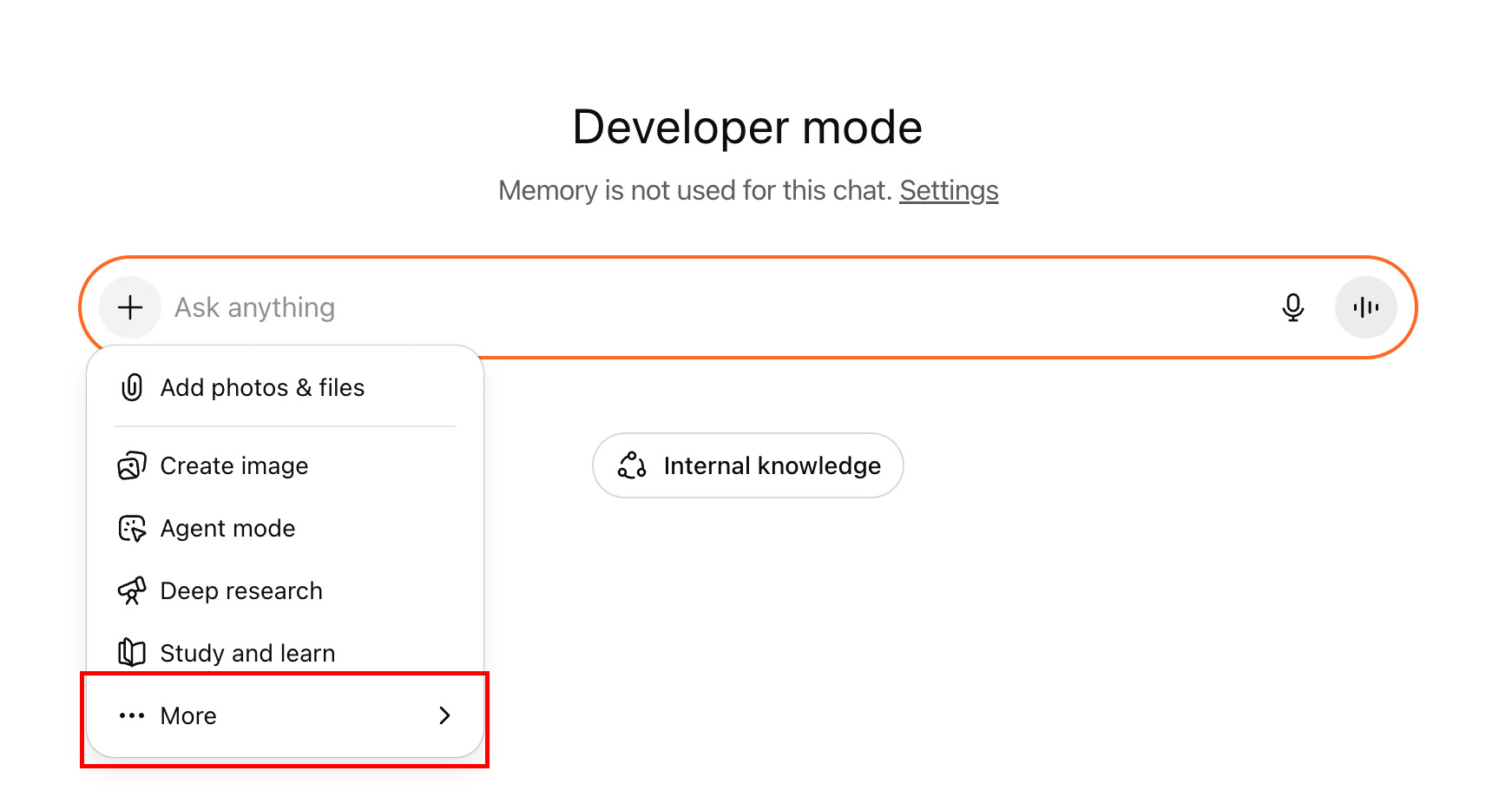
The official first-run example switches the homepage from Chat to Work, starts a Work chat and selects the plugin by typing @. General plugin guidance covers Chat and Work; individual support depends on the plugin and surface. Developer-mode documentation also describes selecting apps through the composer’s plus menu. Confirm that the tool is selected for the actual conversation.
6. Verify a real tool call with the dice example
Use Dice Demo’s roll_dice tool once.
Set sides to 20.
Show the returned value and identify the tool and its arguments.
Inspect the tool call, its sides:20 argument and the returned number, which should be between 1 and 20. There is no fixed correct roll. A fluent sentence saying “I rolled 12” is not evidence of a call; expand the call details to inspect actual input and output.
Try a six-sided die, a request to explain dice without rolling, and an invalid number of sides. Observe how the server validates input rather than expecting a particular error string. This separates connection success, selection and correct use. Apply the same approach to a database or knowledge service using one known record before attempting a batch.
7. A useful next candidate: OpenAI Docs MCP
OpenAI’s Docs MCP provides read-only documentation search and page retrieval at https://developers.openai.com/mcp. It does not call the OpenAI API on your behalf.
It is a candidate to try with the general remote-MCP connection flow. Its own setup guide mainly demonstrates coding clients, so this article does not claim a verified connection inside a personal ChatGPT Pro account. Follow the service’s actual authentication requirements and inspect the discovered tools.
Use OpenAI Docs to find the Responses API tool-calling documentation.
Search first, then read the relevant official page.
List required fields, a minimal example and the original page links.
Mark anything the documentation does not establish.
Check that each linked page supports its associated statement. MCP improves access to evidence; it does not automatically guarantee that the final interpretation is correct. A bounded request with source requirements is easier to assess than “tell me about the API.”
8. Practical workflows for research and publishing
For a tool directory, start with structured research: functions, target users, setup steps, pricing entry points and limits, each with a source. Leave unknown fields unresolved rather than guessing. This creates an editorial draft that is easier to review and update.
A read-only connection to your own archive can locate related articles, duplicate topics and missing tutorials. That does not imply permission to publish. Keep a first workflow limited to drafts and proposed links so that its evidence can be inspected.
For mutation tools, review the target, fields and intended outcome. The developer-mode guide says write actions require confirmation by default, with behavior influenced by tool annotations. A publishing workflow should expose the title, channel, body and status before execution. My recommendation is to favor a few clearly described tools and inspectable results over a large collection of overlapping capabilities.
9. Diagnose seven common failures
| Symptom | First check |
|---|---|
| No creation entry point | Web access, eligible account, workspace rules and developer mode. |
| Connection error | Actual MCP endpoint, HTTPS, path and authentication. |
| Plugin missing from chat | Installation status and a fresh conversation. |
| Answer without a call | Selected plugin, explicit tool and arguments. |
| Authorization fails | External account and server OAuth configuration. |
| New tools absent | Server deployment and refreshed client metadata. |
| Local URL inaccessible | Reachability from ChatGPT, not just your computer. |
A localhost endpoint that works on your machine is not automatically reachable from a cloud product. Choose a supported tunnel or remote deployment. After changing tool names, schemas or descriptions, refresh plugin metadata and start a new conversation. Capture the precise error rather than a vague “nothing happened.” Connection and refresh guidance.
10. Server maintainers: isolate problems with Inspector
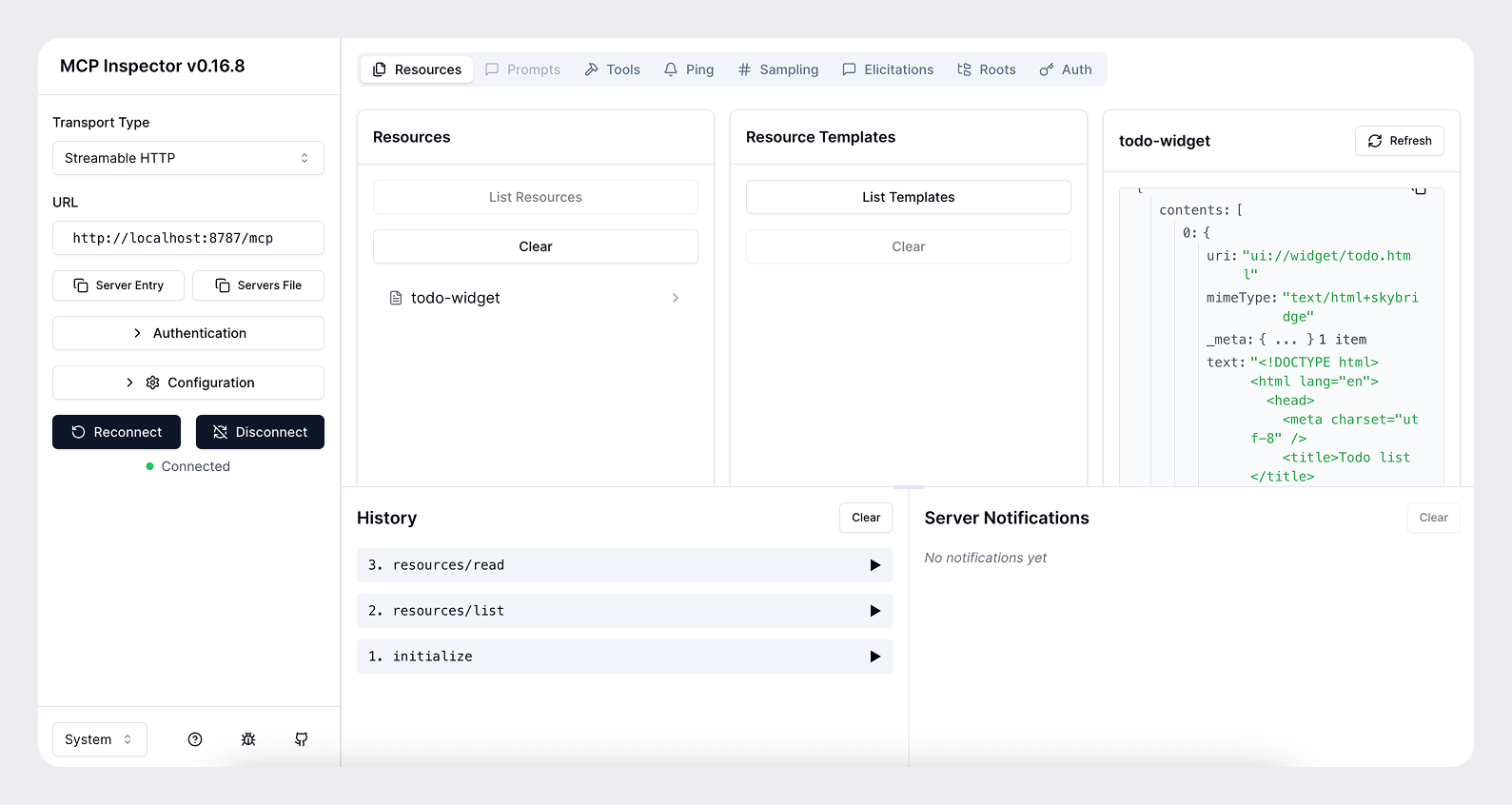
Directory-plugin users can skip this development step. Inspect protocol connectivity, discovered tools and resources, and known inputs before involving the chat interface. The image shows resources; switch to Tools to inspect and invoke a tool.
Test normal, missing and invalid arguments. For a user-scoped order service, verify that another user’s identifier cannot retrieve records. If direct calls fail, rewriting the chat prompt will not repair authentication or validation. Custom UI is optional; clear results and links may be sufficient for a search service. Server and UI development quickstart.
11. Share screenshots without exposing personal data
Capture only the setting, connection form or relevant call. Check account names, avatars, email addresses, chat history, workspace names, private endpoints and authorization details. Prefer public example data so that hiding identifiers does not obscure the actual lesson.
The public connection image already masks its example subdomain; the usable endpoint for this tutorial is given in the table. No user account was accessed for these illustrations. Uninstalling a plugin does not necessarily disconnect its underlying MCP integration, so check connection management and external authorizations if you intend to remove access. Installation and connection guidance.
12. Next exercises and related products
Complete one dice call first and keep an inspectable record. Then try documentation retrieval with specific sources. Connect your own system only after the basic workflow is clear, starting with read-only functions. This sequence gives each failure a small, understandable scope.
- ChatGPT on FindGoodAI
- Codex on FindGoodAI
- Responses API Multi-agent practical guide
- Plugin quickstart; Developer mode; Connect to ChatGPT
- ChatGPT plugin guide; Docs MCP; Server and UI quickstart
Next guide: control local Codex from ChatGPT Web
Control Local Codex Projects from ChatGPT Web: A Windows MCP Guide — Build a local job service on Windows, connect a private tunnel and verify actual file access. Includes example source.