Firefly: make a cover image with room for a title
Follow an official Adobe lesson, then make a landscape cover with a clear subject, useful negative space and two lighting variations.
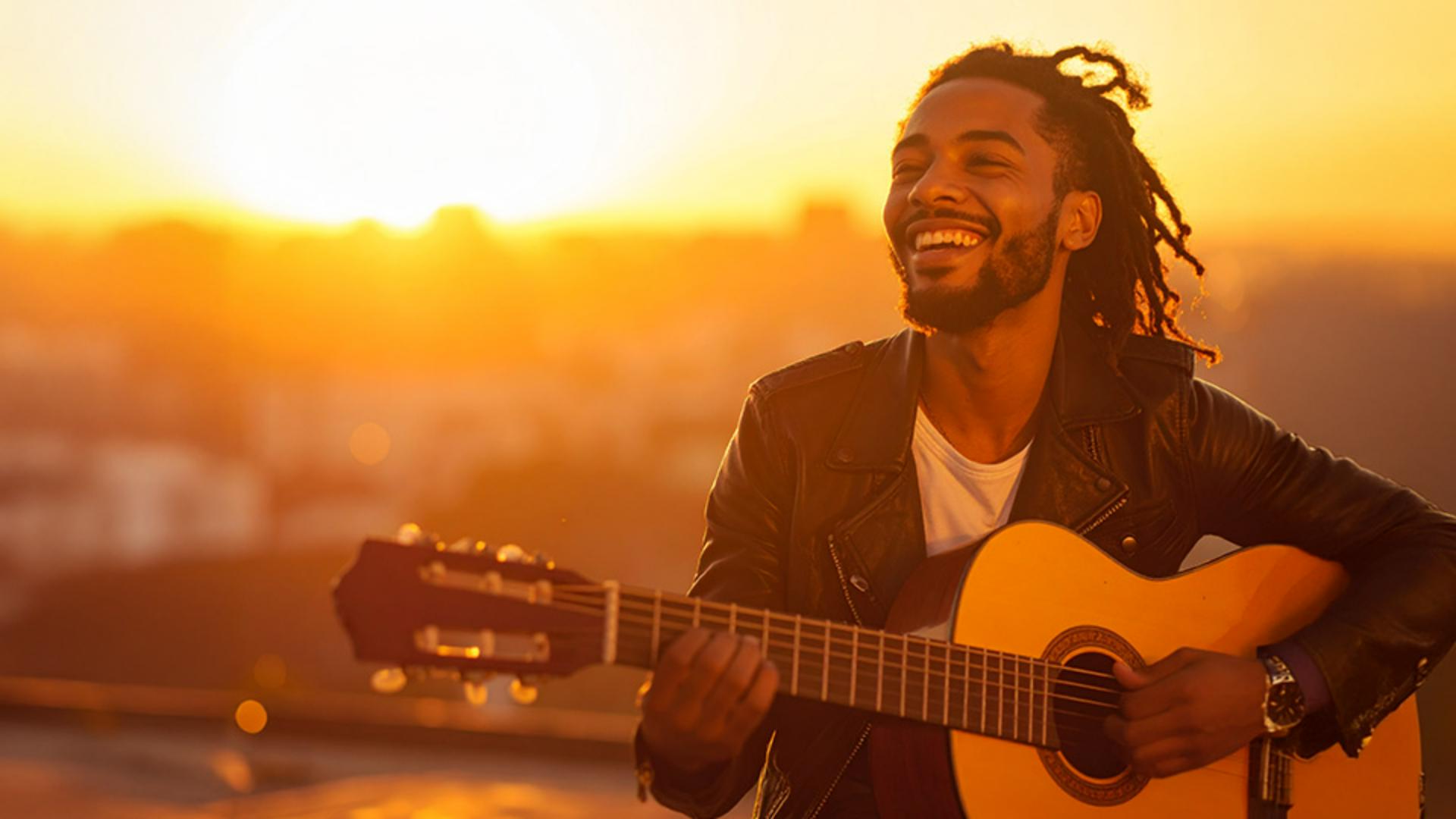
ORIGINAL VIDEOGenerate images from text in Adobe FireflyAdobe Learn · Jesús Ramirez
Watch at source ↗The external player loads when you choose to watch. The source link is always available.
PRACTICE STEPS
Steps and prompts
Follow the steps, example prompts and result checks below.
Your deliverable
Create a 4:3 cover for an article called “A slow weekend coffee.” Put a cup on the right and leave the left clear for the title. Deliver the source image, a layout with the real title added, and the prompts from two attempts.
Follow the five steps
-
Sketch the layout first
Mark a title area on the left of a 4:3 canvas and a cup area on the right. Describe one subject, its surroundings and the light. Keep extra props out of the first attempt.
Check: The sketch makes the title and subject positions obvious.
-
Generate a baseline
On the Firefly homepage choose Image → Generate image. Select a model in Model, choose 4:3 in Aspect ratio and enter the example in Prompt. Choose Photo if the selected model offers that content type, then Generate.
Check: Save a version A with an intact subject and useful viewing angle.
-
Refine the composition
If your model offers Composition Reference, upload your own sketch and compare its effect at a moderate Strength. Otherwise choose a supporting Firefly model or state the subject position more clearly in your text.
Check: The title area is free of the cup, steam and distracting high-contrast objects.
-
Change the light once
Keep the model, subject and composition. Change only “soft morning light” to “warm side light” and generate version B. Compare the cup edges, background and readability of the title area.
Check: You can explain which version is more useful for the intended cover.
-
Add the real title before deciding
Download your preferred image and add the actual title in your layout tool. Check it at desktop size and as a small mobile thumbnail; adjust the crop if needed.
Check: The title stays legible, the cup remains intact and there is no unwanted generated lettering.
Try this original example
These examples were written by FindGoodAI for practice; adapt them to your own material.
An original cover-image prompt
A ceramic coffee cup on the right side of a wooden table, a little steam rising from the rim, a quiet window-side setting, soft morning light from the right, realistic photography, a large clean light-colored area on the left for a title, no text or logos in the image.When the result needs work
There is still no space for the title
Reduce the number of objects and state the subject position. Add your own composition sketch where supported, then place the actual title to judge the result.
The image looks good but makes a poor cover
Compare it inside the real layout, at the required aspect ratio. Do not choose only from the generation grid.
You cannot tell which changes helped
Hold the model and composition constant. Change just one item, such as the light or a subject detail, and keep a record.
Before you finish
- The cup rim and handle have no obvious defects.
- The real title has a clear, readable place.
- The subject remains recognizable on a phone thumbnail.
- The source image, final layout and useful prompt are saved.
Match the video to the current interface
The video calls the entry Text to image. Adobe’s current guide uses Image → Generate image. The available controls and number of generated results depend on the model; do not expect every model to reproduce the video’s four-result layout. The official player provides English captions.
The official player’s chapters include prompt entry (0:17), aspect ratio and content type (0:48), composition reference (2:55) and effects (3:54).
Video by Adobe Learn · Jesús Ramirez. The written steps, examples and checklist are an editorial practice guide based on the linked official documentation. Practice time is an estimate; generation queues may add time.