InVideo
Video creationCreate and revise videos with AI agents while retaining an editable multitrack timeline. InVideo’s current editor combines footage search, storyboard planning, generated assets and real-time collaboration.
Generate and refine video from prompts and visual references. The Dream Machine entry now leads to Luma’s broader creative workspace, combining image and video models with agents and shared project context.
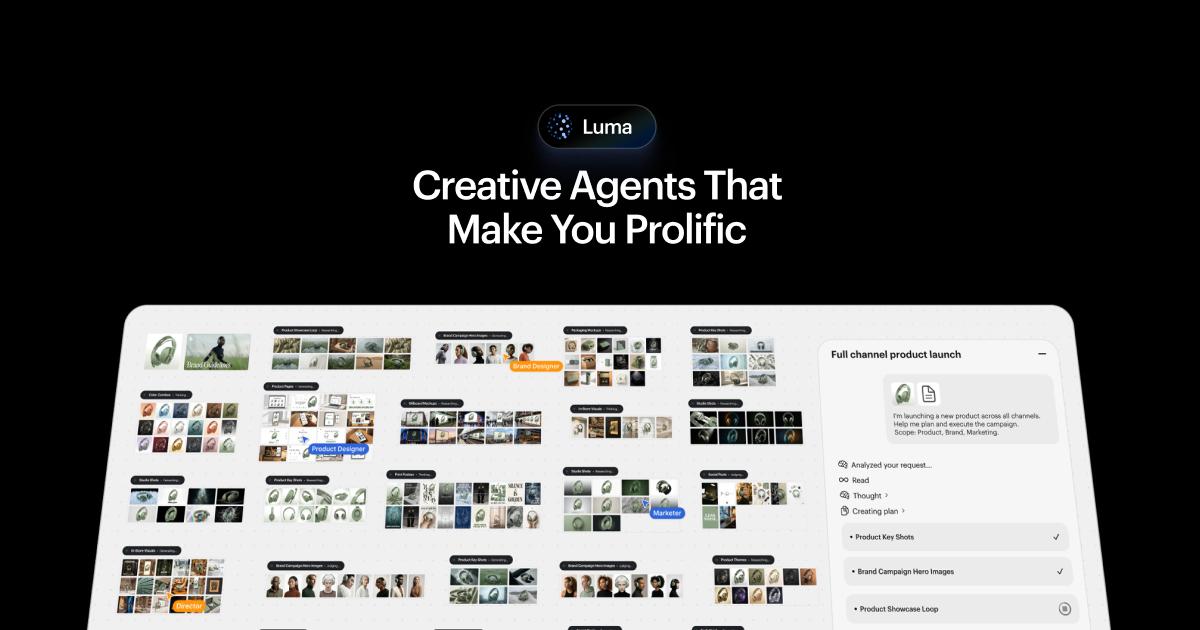
Luma is useful for exploring a visual direction and turning it into a sequence of shots. Its current workspace extends beyond a single video prompt: creative agents can help plan work, generate assets and revise a project using shared context. The familiar Dream Machine URL currently redirects to this newer Luma app presentation.
For a first project, use a short product scene with one subject, one camera movement and a clear end frame. Compare candidates for shape consistency, motion and useful duration. Keep a shot list and select the strongest take before extending it or paying for a higher-resolution version.
Storyboard exploration
Product campaign concepts
Social video variations
Official product image. Click to inspect the details.

Describe a scene or provide a reference image, then choose a supported model and output setting. References can guide composition, but they do not guarantee exact preservation of small text or product geometry.
Supported models offer video-to-video and reframing workflows. Use these to explore alternate visual treatments or aspect ratios while checking that the main action still reads clearly.
Plan and revise related assets within a project instead of treating every generation as an isolated prompt. Give the agent a concrete brief, reference set and list of required outputs.
Guest collaboration and team workspaces support review and coordinated production. Team plans add shared credits and organizational controls.
Resolution, HDR and EXR availability depend on the model and operation. These settings change credit costs, so test the visual idea at a lower-cost setting before preparing a final export.
Prepare a shot brief
Choose a model and budget
Review motion and continuity
Refine and assemble
Write the subject, action, camera movement, aspect ratio and desired duration. Attach only relevant reference material.
Check the cost of the exact operation and resolution. Decide how many variants the project can afford.
Compare the opening, middle and final frames. Watch hands, reflections, text and object boundaries for inconsistencies.
Revise the selected take, add audio where needed and check the sequence in its final delivery format.
Pricing checked on October 5, 2026. See plan details below.
The current individual plans list Plus at $30 monthly with 10,000 credits, Pro at $90 with 40,000 credits, and Ultra at $300 with 150,000 credits. Annual totals shown are $300, $900 and $3,000 respectively. Paid individual plans include commercial use; Team and Enterprise require a quote.
Credits do not translate into one fixed number of videos. Model, duration, resolution, transformation type and HDR/EXR options affect the cost. Audio support also differs by model: the listed Ray3.2 video operations should not be assumed to include generated audio.
Its official entry currently redirects to Luma’s broader app page, which describes the current creative workspace.
Yes, image-to-video is listed for supported models.
No. Audio availability is model-specific; check the generation settings.
Duration, model, resolution and output options can change the credit charge.
Collaboration is supported, with additional shared usage and organization features on team plans.
Check temporal consistency, brand details, motion and the final crop, including frames between the beginning and end.
Explore platforms, inputs and outputs, licensing, and access requirements.
Luma is a proprietary cloud service. The current app includes both Luma and third-party models; a model appearing in the selector does not mean every output format or editing operation is shared across them. Match the selected model to the delivery requirements.
Use approved references and review workspace membership before adding client assets. Check the applicable product terms and team controls for unreleased campaigns. A private review link and a public campaign asset have different intended audiences.
Loading experiences…
Saved tools are private. Approved comments are public; edits return to moderation. Comment counts include approved comments and replies. Each person has one rating. New ratings are automatically approved; withdrawn, unapproved or invalid ratings do not count. Share real experiences and avoid spam, private information or personal attacks.
For moderation appeals or data requests: support@findgoodai.com
Bring a real task and see how it fits the way you work.
User experiences